12-Point Privacy Audit for Your Period-Tracking App
Updated on
Introduction
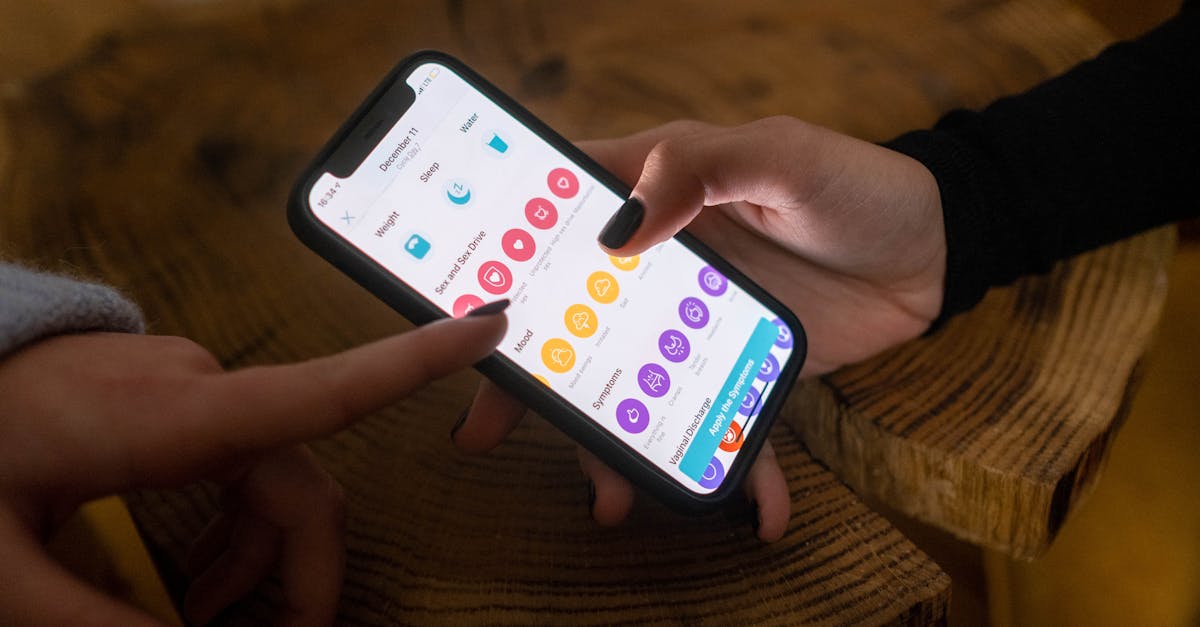
Your period app contains some of your most personal data — and a few quick checks can dramatically lower who sees it. In one sitting (about 60–120 minutes) you can run a 12‑point privacy audit: review the app’s privacy label and hosting, tighten iPhone permissions, disable trackers, export or delete old data, secure your device, and build simple widget and backup habits to reduce real‑world risks.
This article walks you step‑by‑step through quick checks, settings and permissions, data‑control actions, non‑technical security checks, and gentle habit and journaling prompts. It also links to recent 2024–2025 research and legal context so you’ll know why each action matters.
Why a privacy audit matters right now
Cycle‑tracking data is highly valuable to advertisers and can cause real harms when mishandled. A June 2025 report from the University of Cambridge and the Minderoo Centre described menstrual data as a “gold mine” for marketers and warned of safety risks from wide data sharing. At the same time, 2025 legal actions (reported by outlets like The Verge) show courts are taking non‑consensual collection seriously.
Academic reviews (JMIR and others) repeatedly find apps often request more permissions than needed and have inconsistent data‑minimization or retention practices. For you, that can mean targeted ads, uncomfortable disclosures on a shared device, or—rare but real—data vulnerable to legal requests or misuse.
How to use this guide: one sitting, practical steps
Each of the 12 steps below takes about 5–30 minutes. You can complete the whole audit in one focused session (60–120 minutes) or split it across two coffee breaks. No technical tools required — all tasks are doable on an iPhone with basic settings and the app itself.
By the end you’ll have clearer permissions, fewer trackers, a plan for exports/deletions, and a short journaling prompt to help turn this into a habit.
Quick reality check: what apps often share and why it matters
Period apps commonly collect:
- Health details (cycle dates, symptoms, pregnancy attempts)
- Identifiers (email, device IDs, advertising IDs)
- Analytics and crash logs sent to third parties
- Location, timestamps, and usage metadata
Advertisers and data brokers can combine these signals to infer sensitive states (like pregnancy) and target ads or offers. The Cambridge/Minderoo work and related studies show this data can be repackaged, resold, or combined with other sources to create detailed profiles.
Non‑obvious harms include discrimination, subpoenas or legal requests for historic logs, and stalking. The “intimate harms” framework from legal scholarship (2024) reminds us that privacy harms are not just financial — they can affect safety, reputation, and autonomy.
The 12‑Point Privacy Audit (quick checklist)
This audit groups action into: Quick checks, Settings & permissions, Data control, Non‑technical security, and Everyday habits. Each step below explains what to do, why it matters, and the real‑life risk it reduces. Use the mini‑checklist at the end to copy and run the audit now.
Quick checks (steps 1–2)
-
Step 1 — Check the app’s App Store privacy label and privacy page
How: Open the app’s App Store page and tap the Privacy section, or open the app’s privacy policy from its settings or website. Note categories listed: Health, Identifiers, Analytics, Advertising.
Why: App Store labels and the privacy page reveal first‑order data flows and whether the app shares with ad networks or brokers. Many apps still list analytics or ad categories alongside health data.
Real‑life risk: Unexpected sharing can lead to targeted ads or profiling connected to reproductive events.
-
Step 2 — Find where your data is stored/processed
How: Search the privacy policy for words like “data storage,” “GDPR,” “EU,” “Germany,” or named cloud providers (AWS, Google Cloud). Note the data controller’s country and any cross‑border transfer language.
Why: Jurisdiction affects your rights. EU/Germany hosting often comes with stronger deletion and access rights; US‑based storage can mean different legal exposures.
Real‑life risk: Data stored in weaker jurisdictions may be easier for third parties or legal processes to access.

Settings & permissions (steps 3–5)
-
Step 3 — Review iPhone app permissions
How: Go to Settings → [App Name]. Check Location, Health, Photos, Notifications, and Background App Refresh. Revoke non‑essential items and turn off Background App Refresh if you don’t need real‑time sync.
Why: Permissions leak metadata — location plus timestamps can reveal clinic visits or routines. Notifications and widgets can show sensitive content on a lock screen.
Real‑life risk: Accidental exposure on shared phones; third parties using timestamps to infer private events.
-
Step 4 — Check Health app integrations and third‑party connections
How: Open Health → Data Access & Devices and revoke apps you don’t want syncing. In the app, look for “Connected services” and disconnect calendars, Google, Fitbit, or other integrations you didn’t intentionally enable.
Why: Connected services multiply storage points and potential leaks.
Real‑life risk: Calendar or fitness integrations could unintentionally broadcast sensitive entries or metadata across accounts.
-
Step 5 — Turn off analytics/advertising tracking
How: In the app settings look for “Share analytics,” “Personalized ads,” or similar toggles and disable them. Also check iOS Settings → Privacy → Tracking and disable “Allow Apps to Request to Track.”
Why: Many apps send usage and event data to analytics or ad networks. Opting out reduces the chance that cycle signals are included in ad‑targeting pools.
Real‑life risk: More specific ad targeting or resale of sensitive events.
Data control & account actions (steps 6–7)
-
Step 6 — Export and delete old data
How: Use the app’s export tool (often in Settings → Privacy / Account). Expect CSV or JSON formats. Before deleting, verify the export opens correctly and store it in an encrypted folder or secure location if you need a copy.
Why: Exporting gives you control and makes it safe to remove historic logs from a service you no longer trust.
Real‑life risk: Long‑retained histories can be subpoenaed or sold later; exporting lets you limit live exposure.
-
Step 7 — Read retention & deletion policy and make a deletion request
How: Search the privacy policy for “retention,” “delete,” or “data controller.” Use the provided privacy contact or in‑app support to request deletion. Save confirmation emails or request IDs as proof.
Why: Policies vary; keeping records of your request protects you if data is later found to remain in backups.
Real‑life risk: Unclear deletion policies mean data may persist in backups or be transferred to third parties.
Non‑technical security checks (steps 8–9)
-
Step 8 — Secure your device & lock screen
How: Set a strong passcode, enable Face/Touch ID, and change Notifications → Show Previews to “When Unlocked” or “Never.” Consider enabling “Erase Data” after several failed attempts if you prefer.
Why: Anyone with brief physical access to your phone can read widgets or notifications if the lock screen shows details.
Real‑life risk: Roommates or friends seeing cycle status on a locked screen; casual exposure when leaving your phone on a shared table.
-
Step 9 — Enable two‑factor authentication (2FA)
How: Turn on 2FA in the app (if offered) and enable 2FA on the email account linked to the app. Prefer authenticator apps (e.g., Authy, Google Authenticator) or hardware keys over SMS when possible.
Why: 2FA prevents account takeovers that could expose long histories or allow someone to impersonate you in support requests.
Real‑life risk: Unauthorized access, doxxing, or harassment from compromised accounts.
Everyday habits & translations of findings (steps 10–12)
-
Step 10 — Widget and home‑screen hygiene
Habit: Prefer minimal widgets that show non‑specific info (e.g., “Cycle: day 12”), or disable widgets that reveal details. If the app offers private‑by‑default widgets, use them.
Why: Widgets are handy but can reveal sensitive states at a glance to anyone nearby.
Real‑life risk: Accidental disclosure on shared desks, on public transport, or in group settings.
-
Step 11 — Backup policy habit
Habit: Check whether the app data is included in iCloud backups. If you prefer fewer copies, consider encrypted local backups or exclude the app from cloud backups. Schedule a quarterly review.
Why: Backups create multiple copies of your data across accounts and devices, increasing exposure.
Real‑life risk: More copies mean higher chance of access through synced accounts or legal requests.
-
Step 12 — Journal & reflection prompt
Habit: Write a short private journal entry after auditing. Template: “What I changed today: ___ . How that felt: ___ . Next small step: ___.” Optional prompt: “What did I learn about my digital boundaries today?”
Why: Journaling reinforces behaviour change without fear; it’s a gentle way to record choices and plan next steps.
Real‑life benefit: Keeps you from slipping back into unsafe defaults and builds a sustainable privacy routine.
Feature highlight: how an app can make privacy easy
Linking audit findings to real‑life risks
Shared devices / roommates: Widgets and lock‑screen previews can reveal cycle status. Fixes: hide previews, limit widgets, and secure device (Steps 3, 8, 10).
Targeted ads / commercial profiling: Third‑party analytics and ad sharing power precise targeting. Fixes: disable analytics/ads in app and system tracking (Step 5) and prefer apps that don’t share with ad networks (Step 1).
Legal / subpoenas: Historic records can be requested in legal processes. Fixes: export what you need and request deletion; choose apps with clear retention policies or local‑first storage if you need stronger protection (Steps 6–7).
Stalking / cyberstalking: Location and timestamps combined with logs can be dangerous. Fixes: revoke location access, disconnect calendar/fusion integrations, harden device access (Steps 3, 4, 8).
Practical recommendations when choosing or switching apps
- Look for explicit local‑first options or end‑to‑end encrypted cloud sync when available.
- Prefer apps with clear retention and deletion policies and an easy export tool.
- Avoid apps that automatically share with ad networks; find transparency about third‑party partners.
- If you need multi‑device sync (e.g., TTC), choose providers that name their data jurisdiction and support E2EE where possible.
- Keep logs minimal: only record what you truly need; store sensitive notes in a separate encrypted journal.
Quick starter checklist you can copy (do this now)
- Check app privacy label & policy — 5 minutes.
- Revoke non‑essential permissions & hide lock‑screen previews — 5–10 minutes.
- Disable analytics/ads and disconnect third‑party services — 10 minutes.
- Export & delete old data you don’t want stored — 15–30 minutes.
- Set a monthly 5‑minute reminder to review widget and backup settings + write a short privacy journal entry — 5 minutes.
Bookmark this checklist and repeat the audit every 3–6 months, or after major app updates.
Resources, studies, and where to learn more
- University of Cambridge / Minderoo Centre, June 2025: report on cycle‑tracking data risks and governance recommendations.
- The Verge, 2025: coverage of a jury ruling on collection of menstrual data (legal context).
- JMIR, 2024: studies on user behaviors and app quality in menstrual tracking.
- Computer Law & Security Review, 2024: “Intimate harms” framework — why privacy harms go beyond breaches.
- App privacy scoring and research from 2023–2024 showing over‑permissioning in many apps.
Plain‑language guides: look up GDPR data deletion rights and templates for data access/deletion requests in your jurisdiction. Save or print the checklist and set a calendar reminder to repeat this audit.
Closing and gentle journaling prompt
Small habits protect your choices without fear. A short, regular privacy check keeps defaults working for you rather than against you.
Journaling prompt (3–5 lines): “Today I checked: ___ . One change that mattered: ___ . My next small step: ___.” Schedule a 5‑minute monthly privacy check and you’ll quickly turn this into a sustainable routine.
If you’d like a printable audit, in‑app microcopy for widgets, or a one‑page checklist, I can draft those next.
Try App
Learn what App does, browse features, and get support resources.
Frequently Asked Questions
- Can my period‑tracking app data be used against me in legal cases?
- Yes — in some situations app data can be requested in legal processes or investigations. Courts and subpoenas can reach records held by companies, and recent cases and reporting (e.g., 2024–2025 coverage) show reproductive‑adjacent data is increasingly scrutinized. You can reduce exposure by minimizing retention, exporting then deleting sensitive history, and choosing apps with clear deletion policies and strong data minimization.
- Are period‑tracking apps covered by HIPAA or other health laws?
- Usually no — most consumer period‑tracking apps are considered “lifestyle” products and are not covered by HIPAA unless run by a HIPAA‑regulated healthcare provider. Instead, protections depend on the app’s privacy policy, regional laws like the EU’s GDPR, and any company promises about storage, sharing, and deletion. Check the app’s policy and jurisdiction to know your rights.
- Is it safer to store cycle data locally rather than in the cloud?
- Local storage can be safer from third‑party access because it limits external data flows, but it shifts responsibility to device security and backups. Cloud sync offers convenience and multi‑device access but may expose metadata to vendors or legal requests. Choose based on your threat model: local‑first or end‑to‑end encrypted cloud services for stronger privacy, and always secure your device.
- How can I stop advertisers from using my cycle data for targeted ads?
- You can significantly reduce ad targeting by disabling in‑app analytics/ads, turning off iOS app tracking, and disconnecting third‑party integrations (calendars, trackers). Also review the app’s privacy label for third‑party sharing and prefer apps that don’t share data with ad networks. Regularly check permissions and opt out of personalized ads at the system and app level.
- How often should I repeat this privacy audit?
- Repeat the audit every 3–6 months, or sooner after major app updates or policy changes. App practices and legal contexts change quickly, so a short quarterly or biannual check keeps permissions, backups, widgets, and deletion settings up to date and helps you maintain simple privacy habits without extra stress.
Written by
LunaraHi, I'm Lunara. I was tired of wellness tools that felt like chores, or worse, like they were judging me. I believe your body already knows what it needs. My job is just to help you listen. Whether you're tracking your cycle, building a morning routine, or simply trying to understand why Tuesdays feel harder than Mondays — I'm here to be a quiet companion, not a demanding coach. I care deeply about your privacy. Your data stays yours. I'll never sell it, never train AI on your personal moments, and I'll always give you a way out if you need one. Some things are just between you and your journal. When I'm not thinking about cycle phases and habit streaks, you'll find me advocating for women's health literacy, learning about the science of rest, and reminding people that "good enough" is actually good enough. I'm so glad you're here. 🌙